
Requesting speeches works in a similar way to role requests. To start you need to click on the ‘request a speech’ link of the ‘My Participation’ menu. Doing so will open a new popup windows, containing three tabs, ‘Speech Title’, ‘Workbook/Speech’ and ‘Preferred Dates’.
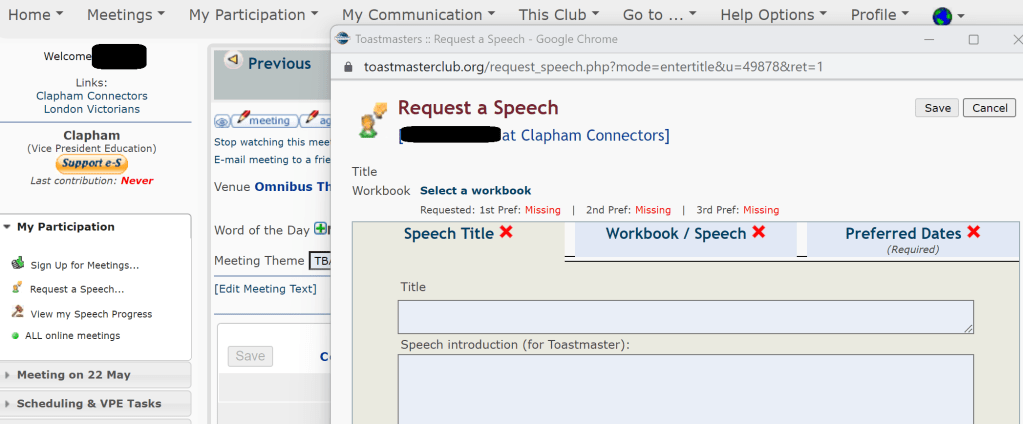
The first tab asks for the title of your speech title. If you are unsure of the title for your speech at the point of signing up you can simply write to be confirmed for now and return at a later time to add this.
If this is your first speech you must select the workbook in which you will be working on. Alternatively, if this is not your first speech, please select the title of the workbook that applies to you.
You will need to express your first, second and third preferred dates in the last tab. Whenever possible, we will endeavour to accommodate your first preference, but should it not be possible we may have to reschedule your speech to your second or third preferred dates.
Once this process is completed, the Vice-President for Education will be notified by e-mail and will schedule your speech accordingly.
Updating your speech title
Should you need to add or amend the title of your speech before a meeting, you can do so by navigating to the speech agenad and then clicking on the pencil circled in green below which will pop up the ‘Speech Title’ tab.

Alternatively, if you’ve indicated your intention to make a speech on the whatsapp group, the toastmaster for the meeting will reach out to you for the relevant details and ensure these are entered onto the system for you.
 Clapham Connectors